A Pneumonia Classifier Without Writing Code
The fastest way to lose a room of beginners is to open a Jupyter notebook in the first hour.
In May 2026 I lectured a 16-hour course called Fundamentals of Machine Learning. Most of the students had never trained a model. Before showing them gradient descent, loss curves, or a single line of Python, I wanted them to feel what a trained model is: a thing that looks at an input it has never seen and gives an answer with a confidence attached. That feeling is worth more than the maths in the first session, and in 2026 it takes about fifteen minutes to produce.
Training in the browser
The tool was Teachable Machine, Google’s no-code trainer. You create classes, drop images into each one, press train, and get a model that runs in the browser. There is no code, no environment to install, and nothing to explain about tensors.
For the data I wanted something that mattered more than cats and dogs. I used the chest X-ray portion of a public dataset from Kermany, Zhang, and Goldbaum at the University of California San Diego, published under a CC BY 4.0 licence. The X-rays are labelled as normal, bacterial pneumonia, or viral pneumonia, which gives a three-class problem that any student can understand without a radiology background.
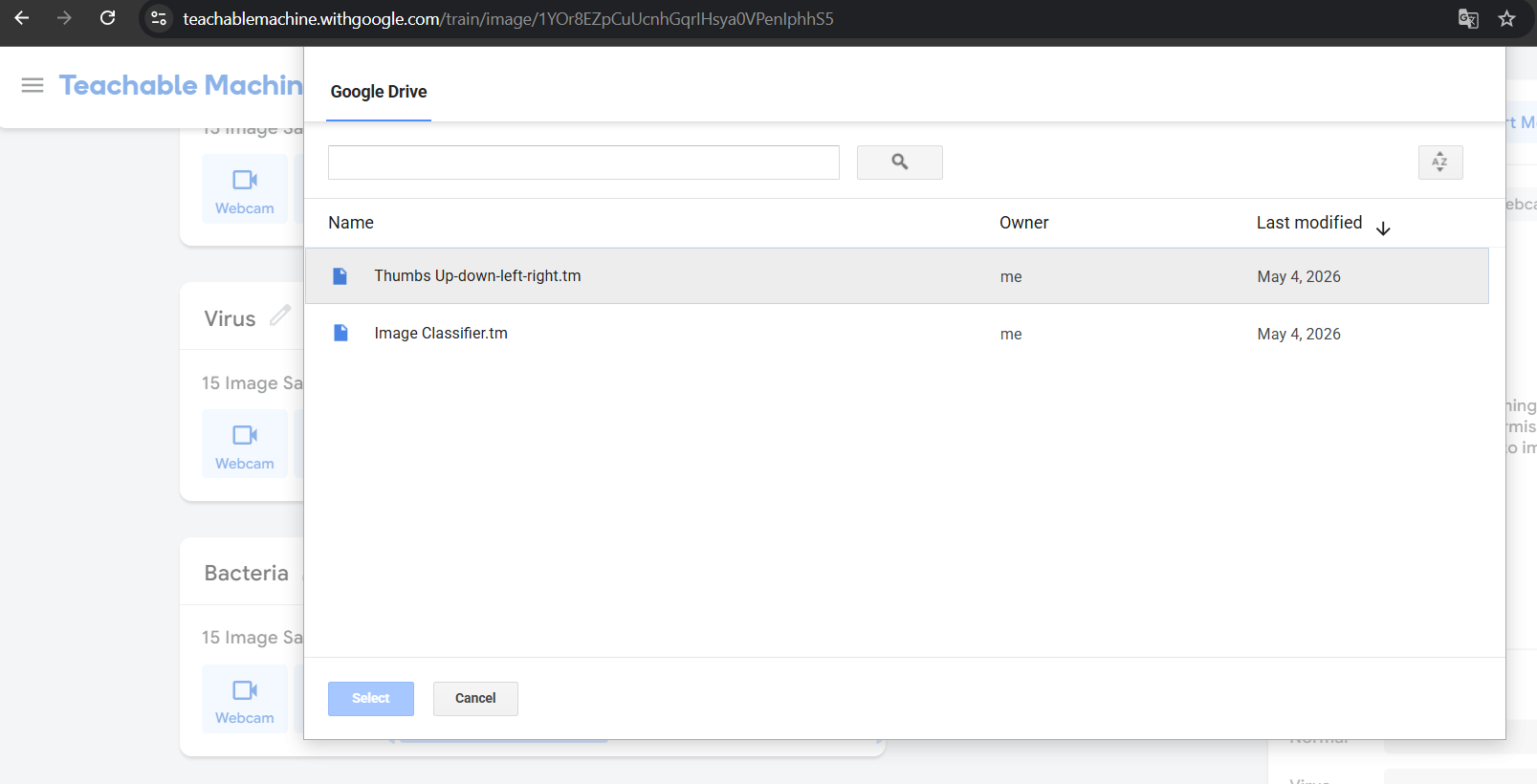
The project in Teachable Machine. Three classes, fifteen images each, and the trained project saved to Drive.
Fifteen images per class. Forty-five X-rays in total. The students watched the training bar move, then dragged a new X-ray onto the page and saw the model answer. Then came the first real lesson of the course, which the tool handed me for free.
The 99.9% problem
The model was confident. Very confident. On the test images it produced numbers like 99.9% for one class and a rounding error for the others.
To a beginner that reads as “it works”. To anyone who has shipped a model it reads as a warning. Forty-five images cannot teach a network what pneumonia looks like. They can teach it what these forty-five images look like, and anything that resembles them will score high. We spent a good part of the session on exactly that: why confidence is not accuracy, what a held-out test set is for, why class balance matters, and why a model trained on a few dozen paediatric X-rays from one hospital must never be mistaken for a diagnostic tool.
That conversation is much easier to have when the students built the overconfident model themselves ten minutes earlier.
Giving it a face
Teachable Machine’s own preview panel is functional but plain, and a model nobody can use is only half a demonstration. So the second step was to export the model and ask Google AI Studio to build an interface around it, in the same vibe-coding style I had used for SegmentAI Analyst.
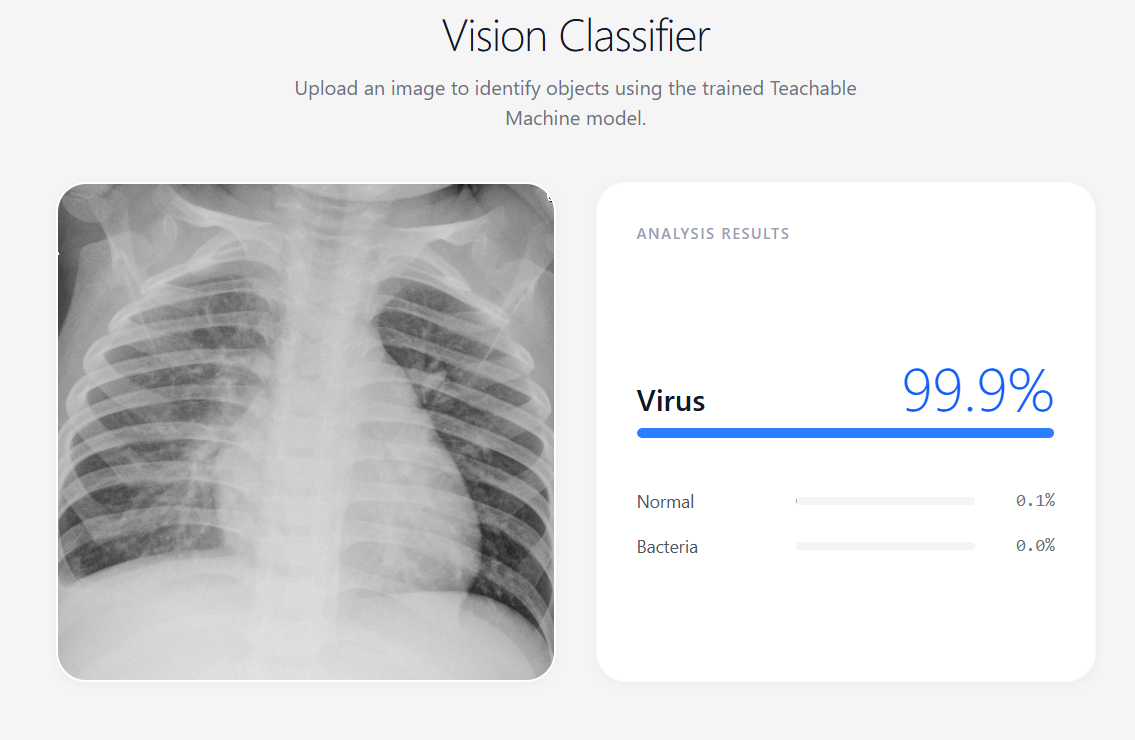
The interface generated with Google AI Studio. Upload an image on the left, read the prediction on the right.
Describe the page, iterate on the result, paste in the model link, done. The students could see that the gap between “I trained something” and “someone else can use it” had collapsed to an afternoon, and that no part of it required a developer.
Making it real
Like the segmentation app, this one sat for a few months and then got the proper treatment. With Claude Code I rebuilt it into the Vision Classifier Playground, hosted on Render.
The core idea did not change. It is still the TensorFlow.js model that Teachable Machine exports, and everything still runs in the browser. Nothing you upload leaves your machine. What changed is that the app is no longer tied to one model:
- Load any Teachable Machine image model. Paste the share link from the Export panel and the app fetches the model and its labels.
- Test it three ways. Drag and drop, browse, paste an image from the clipboard, or point a live webcam at something and watch the predictions update.
- A built-in demo. The original chest X-ray model ships with the app as a sample, so there is something to try before you train your own.
- A disclaimer where it belongs. The demo model carries a visible notice: educational only, trained on a small public dataset, not clinically validated, and not to be used for any medical decision. That notice is in the app, not in a footnote somewhere else.
The move from one hard-wired model to “bring your own model” is the part I am most pleased with. It turns a course demo into something a student can use the week after the course, with whatever they trained themselves.
What I took from it
Start with the feeling, then the theory. A beginner who has watched their own model classify an unseen image is ready to care about why it might be wrong. The order matters.
Let the tools create the teachable moment. The 99.9% on forty-five images was not a flaw in the demo. It was the best slide of the day, and I did not have to make it.
No-code gets you to the demo. Code gets you to the product. Teachable Machine and AI Studio took the idea from zero to usable in an afternoon. Claude Code took it from usable to something I am happy to put a link to, with proper loading states, error handling, and a disclaimer. Both halves are real work, and both are now far cheaper than they were.
If you want to try it, open the Vision Classifier Playground, load the demo, and then go train your own model in Teachable Machine and paste it in. It takes less time than reading this post did.